How to Create a Reversible Settings Logbook for Your Streaming Box in a Small Apartment
October 26, 2026 · 15 min read
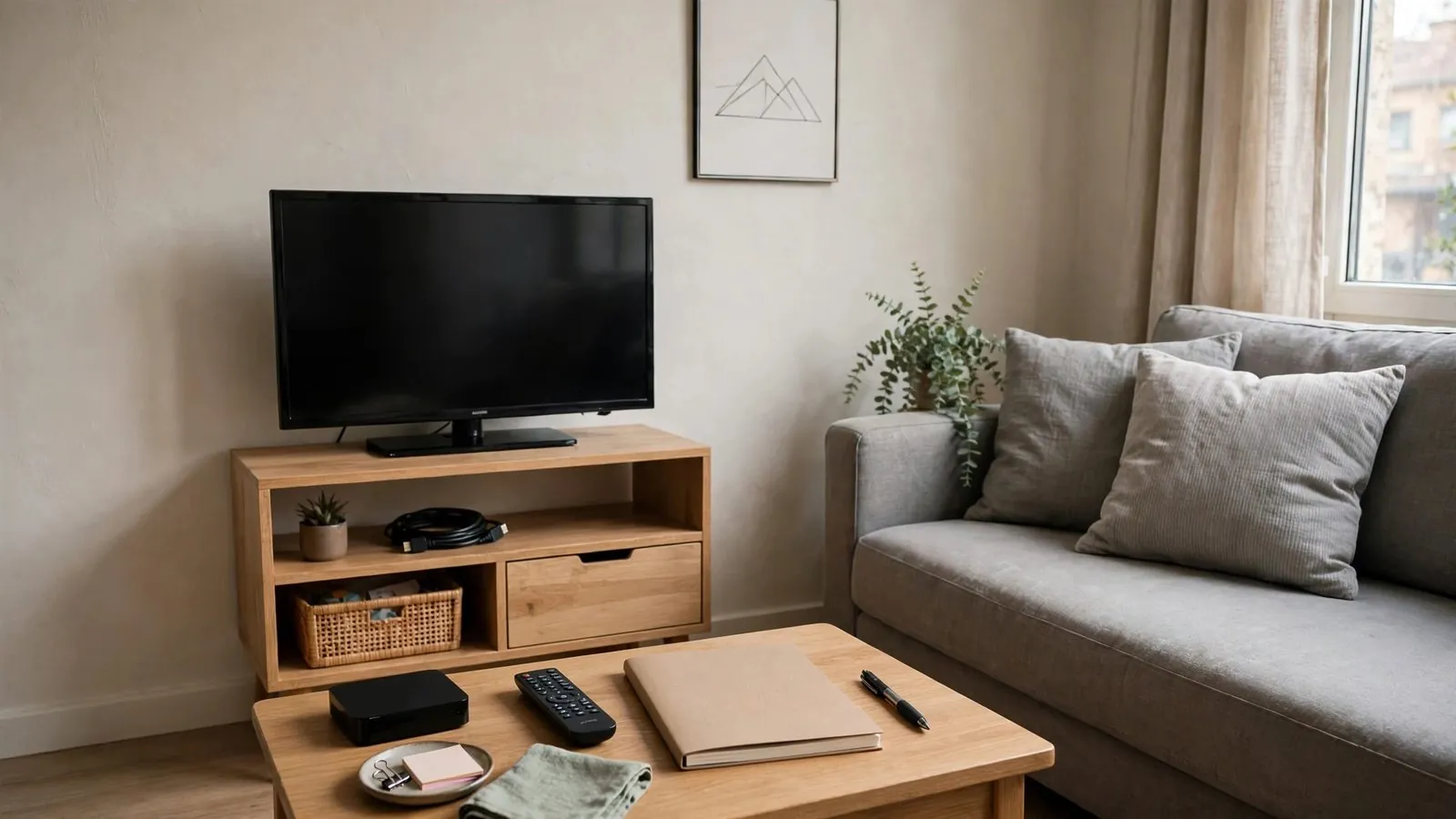
The Case for a Reversible Settings Logbook in Small Spaces
Living in a compact apartment or studio requires deliberate organization across every living zone. When your relaxation, dining, and workspace occupy the same compact footprint, entertainment hardware functions best when visual distraction and sound spillage are kept under control. Modern media streaming boxes feature extensive personalization menus—from UI typography scaling and color temperature to dynamic range compression and sleep timers. However, adjusting these parameters informally without tracking changes frequently leads to configuration drift. Over time, menu fonts become difficult to read from close seating, volume fluctuates unexpectedly through shared apartment walls, and cluttered home screens undermine your living environment.
A reversible settings logbook is a personal tracking system—maintained in a dedicated notebook or a local digital text file—that records a functional working baseline (whether initial factory defaults or a customized stable profile), intentional modifications, active values, and clear rollback steps. Rather than treating device setup as an unpredictable series of trial-and-error adjustments, a logbook establishes a reliable operational reference. This organized approach helps avoid unnecessary and destructive factory resets when an experimental tweak fails to deliver the expected comfort.
Establishing an Out-of-the-Box Baseline
Before modifying interface layout, audio profiles, or visual preferences on a new or refreshed streaming box, document its current working baseline. While recording factory defaults on a new device can be useful, a working baseline does not need to be the factory default state; capturing your existing functional configuration provides a reliable recovery reference. Note that menu structures and default options serve as examples only, as actual interfaces differ significantly across hardware manufacturers and operating system versions.
Take time to navigate through the core system preference menus to record:
• Display Baselines: Note the active interface resolution, color format, and refresh mode. Stick to automatic, manufacturer-supported detection modes whenever possible; selecting unsupported manual modes can cause display loss.
• Interface Density: Document default icon grid arrangements, font sizes, and screen saver idle intervals.
• Audio Profiles: Check whether system sounds, surround passthrough, or standard stereo mixing are enabled out of the box.
• Standby and Sleep Behavior: Record factory sleep timers and note whether device LED indicators stay illuminated in low-power modes.
Record these parameters under a clear heading such as [System Baseline - Working Reference]. Note the exact menu sequence (for example: Settings > Display > Advanced > Match Frame Rate) alongside the active toggle status. Menu labels and paths vary by brand. Keep in mind that while documented notes assist in rolling back visible menu choices, they cannot restore access if an unsupported video mode produces a blank screen; in that event, rely on automated display detection fallback or documented manufacturer recovery shortcuts.
Display Scaling and Readability for Short Viewing Distances
In studio apartments, the distance between your seating area and the television screen is often under two to two-and-a-half meters. Under these conditions, interface elements configured for expansive rooms can feel overpowering, while small text can cause eye strain under varied apartment lighting.
Key visual parameters to document and calibrate include:
• UI Scaling and Typography: Many media boxes offer options for standard, enlarged, or high-contrast text. If you change font scaling from standard to large, record the date, the chosen setting, and whether longer title descriptions become truncated on your home screen.
• Theme Brightness and Contrast: Compact apartments shift quickly between daylight and evening lighting. Switching from a light theme to a subdued dark mode or reducing UI contrast softens the screen's presence across the room. Log the specific brightness percentage or theme toggle so you can revert it during brighter summer months.
• Subtitle Appearance: Subtitle size, color, and background opacity play an essential role in close viewing. If you modify subtitle styling from standard white text to yellow text with a semi-opaque black background, write down the exact parameters. Should a media player render subtitles too high on the screen, your logbook provides the precise path back to your baseline.
Documenting visual adjustments helps keep your screen comfortable to view across varying lighting conditions in a compact room.
Audio Modes and Night-Listening Presets for Shared Walls
Shared walls, ceilings, and floors are standard considerations in multi-unit apartment living. Media content often features wide dynamic range audio, where quiet dialogue suddenly shifts to loud sound effects or background music. Without adjustments, this forces apartment dwellers to continually manage the remote control to avoid disturbing neighbors.
To configure an apartment-friendly acoustic setup, document and test the following adjustments:
• Dynamic Range Compression vs. Volume Leveling: Dynamic range compression (which attenuates peak volume spikes relative to quiet passages) and volume leveling (which normalizes loudness across disparate programs or inputs) are distinct capabilities. Separate dialogue enhancement features may also be provided on specific devices. Consult your manual for available processing options, and note that these controls smooth volume swings rather than providing guaranteed acoustic isolation through building walls. Record active settings (e.g., Audio > Advanced > Night Mode: On if supported).
• Stereo Downmixing (2.0 PCM): Routing audio as two-channel stereo (2.0 PCM) simplifies playback on televisions and basic soundbars that lack surround decoding. However, stereo downmixing does not inherently eliminate low-frequency bass transmission through walls, nor does it guarantee speech clarity, as bass frequencies may still be mixed into the stereo channels. Rather than assuming automatic bass reduction, record any available documented sound controls and note your practical listening observations in your logbook. Record whether your baseline was Auto Passthrough or Bitstream before selecting Stereo PCM.
• System Navigation Clicks: The click sounds produced when navigating menus carry easily through quiet rooms late at night. Document when you disable System Sounds / Interface Audio so you can re-enable them later if desired.
Logging these adjustments helps establish a practical quiet-hours profile that manages sudden volume peaks, though it does not replace structural sound isolation or mindful listening levels.
Interface Organization and Clutter Reduction
Streaming interfaces can quickly become cluttered if promotional rows, automated recommendations, and unused category tabs remain enabled. In a small apartment where the screen is often visible from your kitchen or workspace, a clean interface reduces visual distraction.
Maintain interface hygiene by tracking these settings:
• Pruning Home Screen Channels: Many platforms let you hide or reorder home screen rows (such as "Recommended Movies" or "Trending Content"). In your logbook, list the rows you disable and their default positions.
• Arranging Pinned Favorites: If your streaming platform supports customizable app rows, organize your primary applications into a preferred sequence. Record the order in your logbook so that following an interface update, you can reference your preferred layout without relying on memory alone.
• Disabling Video and Audio Previews: Auto-playing previews while browsing can feel jarring in a quiet space. Check whether your interface provides an option under Settings > Home Screen > Auto-Play Previews, and record its state.
Keeping an inventory of your interface layout helps maintain a calm, functional, and organized home screen.
Structuring a Functional Settings Card
Whether you use a small physical notebook kept in your media console drawer or a plain-text note on a computer, a standardized card format makes records easy to read and update.
Each logged adjustment should include four standardized fields:
• Menu Path: The precise navigation sequence to reach the setting (e.g., Settings > Audio > Advanced > Dynamic Range).
• Baseline Value: The value or state prior to modification (e.g., Baseline: Full Dynamic Range).
• Active Custom Value and Date: The new value currently applied, along with the date of modification (e.g., Custom: Night Leveling Active / 2026-10-25).
• Context and Rollback Action: A brief note explaining why the change was made and how to revert it (e.g., Context: Tame loud sound effects during late evening viewing; rollback by selecting Full Dynamic Range for daytime use).
```text --- SETTINGS RECORD CARD --- Device Label: Studio Media Box Subsystem: Audio Configuration Menu Path: Settings > Sound > Advanced Audio > Volume Leveling Baseline State: Off / Uncompressed Active Value: Night Mode / Leveling On Date Modified: 2026-10-25 Reason: Balance dialogue and action volume peaks during late-night viewing. Rollback Step: Return to Volume Leveling and toggle to Off.
```
This structured format helps avoid vague notes, providing clear guidance when you need to revert a change later.
Maintenance Checklists and Preventing Configuration Drift
A common challenge with personal media setups is "tinker drift"—the tendency to adjust global settings repeatedly in response to an issue with a single piece of media. If a particular broadcast has quiet dialogue or low contrast, modifying global device settings rather than app-level controls can slowly degrade your baseline experience.
To minimize configuration drift:
• Optional Monthly Review: As an optional routine, spending a few minutes once a month checking active settings against your logbook records can help catch temporary adjustments (such as a temporary contrast increase for a dark film) that were left active.
• Evaluation Window Example: When making an intentional change (like adjusting subtitle sizing), leaving the adjustment in place for an evaluation window—such as 24 to 48 hours—allows you to observe it across varied lighting conditions before deciding to keep it.
• Change One Parameter at a Time: Avoid adjusting audio modes, subtitle styling, and display scaling simultaneously. Modifying one parameter at a time makes it straightforward to evaluate each adjustment independently.
Safe Backup and Clean-Slate Restoration Protocols
System updates or accidental menu missteps can occasionally disrupt your personalized setup. Having a clean-slate restoration plan helps you rebuild your configuration systematically if troubleshooting becomes necessary.
A reliable restoration protocol includes:
• Local Configuration Export: If your streaming box supports exporting preferences to local storage, create an export archive after establishing your baseline. Keep machine-readable backup files intact and stored securely in their native format without editing or redacting them, and record the backup date and filename in your logbook.
• Documenting Core Non-Sensitive Preferences: In your separate human-readable notes, record only structural configuration options such as accessibility toggles, language preferences, time zones, and idle timers. Never write down passwords, personal tokens, or private credentials in shared or unsecured notes.
• Factory Reset as a Documented Last Resort: A factory reset is inherently destructive—clearing local configuration data and installed items according to your specific device model, though it cannot be assumed to manage or remove external or cloud-synced account data—and must never be treated as a routine recovery step. It should only be performed as an official documented last resort with intact backups and explicit user consent, after standard reboots and targeted menu rollbacks have failed. If a clean-slate restore becomes unavoidable, having an intact logbook baseline allows you to methodically reconfigure settings without guessing.
Step-by-Step Logging Checklist for Any Adjustment
Follow this five-step checklist whenever adjusting a parameter on your streaming device:
• Step 1: Document the navigation path. Record the exact menu sequence before pressing any buttons.
• Step 2: Note the active baseline value. Write down the current toggle state or numerical value before changing it.
• Step 3: Apply a single modification. Adjust only one setting at a time to keep variables isolated.
• Step 4: Record the date and objective. Note why the adjustment was made (e.g., "Increased subtitle contrast for afternoon viewing").
• Step 5: Schedule an evaluation check. Set an optional reminder (for instance, 24 to 48 hours later) to decide whether to adopt the change or revert to baseline.
Comparison: Systematic Logging vs. Ad-Hoc Adjustments
The following table outlines the key differences between managing device preferences through a structured logbook versus unrecorded, ad-hoc changes:
Feature: Reversibility · Systematic Settings Logbook: Provides documented paths and baseline values to assist rollback. · Ad-Hoc Untracked Adjustments: Relies on memory; often requires guessing earlier settings.
Feature: Interface Stability · Systematic Settings Logbook: Helps preserve preferred screen layout and menu choices over time. · Ad-Hoc Untracked Adjustments: Can lead to untracked visual clutter or unexpected layout shifts.
Feature: Acoustic Management · Systematic Settings Logbook: Documented audio profiles offer a reference when switching modes. · Ad-Hoc Untracked Adjustments: Risk of forgotten toggles and unexpected sound level shifts.
Feature: Update Recovery · Systematic Settings Logbook: Simplifies re-applying documented layout and accessibility choices. · Ad-Hoc Untracked Adjustments: May require trial and error to reconstruct preferred settings.
Feature: Troubleshooting · Systematic Settings Logbook: Allows checking dated entries to trace recent parameter changes. · Ad-Hoc Untracked Adjustments: Makes it harder to identify which adjustment caused a recent change.
Hypothetical Case Studies: Practical Rollback Scenarios
To illustrate how a settings logbook might function in everyday apartment life, consider these two explicitly hypothetical scenarios. These scenarios are illustrative examples and do not constitute technical proof of performance:
Hypothetical Case Study 1: Reverting Subtitle Formatting
A resident in a studio apartment found standard white subtitles difficult to read during bright afternoons due to window reflections. Without checking baseline values, they modified subtitle styling via Settings > Accessibility > Subtitles, changing the font to bright yellow, scaling to 200%, and adding a solid black rectangular background.
While readable in daytime sunlight, evening viewing in a dimly lit room proved uncomfortable: the large black backdrop covered significant screen area and produced distracting glare. Because the resident had documented their original baseline (Font: Sans-Serif / Size: 100% / Color: White / Background: 25% Opacity Black), they navigated back to the menu path and restored their baseline setting without guessing. In this fictional example, they subsequently logged a moderate adjustment (+20% font size with a drop shadow) designed to balance bright and dark conditions. *(Identifiers masked: device ID dev_*, profile usr_*)*.
Hypothetical Case Study 2: Restoring Audio Dynamic Range After Late-Night Viewing
An apartment tenant watching a weekend sports match noticed that the broadcast sounded unusually flat and commentary lacked clarity. Reviewing their audio logbook, they found an entry from earlier in the week: Audio Settings > Dynamic Compression: Enabled (Extreme Night Compression).
The tenant had enabled this setting to moderate loud sound effects during late-night viewing, but had forgotten to disable it the following morning. Because the logbook clearly documented the daytime baseline (Dynamic Range: Full / Output: Stereo PCM / Volume Leveling: Off), the tenant restored the standard daytime profile directly. They also added a note on their settings card to check audio modes following late-night viewing. *(Identifiers masked: audio output pcm_*, hardware profile port_*)*.
Conclusion
In a compact living space, a thoughtful media streaming setup helps minimize unnecessary visual clutter and acoustic disruption. By implementing a simple, reversible settings logbook, you transform random tinkering into a deliberate, manageable process. Documenting your baseline configurations, testing changes within structured evaluation windows, and maintaining a clear path back to original settings can help you personalize your entertainment setup with greater confidence.
Want an all-in-one IPTV with box?
Frequently asked questions
Should I use a physical notebook or a digital document for my logbook?
Both formats work well. A physical notebook or index card stored in your TV console drawer remains accessible even if your streaming device fails to display a picture or encounters a boot issue. A digital note stored on a mobile phone or computer is easy to search and update quickly. Choose whichever option fits your daily habits.
What is the most critical parameter to record before making changes?
Display resolution and refresh rate settings carry high operational risk when manual overrides are permitted. Prefer automatic, manufacturer-supported detection modes (such as HDMI EDID auto-negotiation) to avoid sending an incompatible signal. Selecting an unsupported video mode can result in a blank screen, at which point written notes cannot assist with on-screen navigation. When testing display modes, rely on supported automatic detection modes, verify whether your hardware provides a documented automatic reversion prompt, or familiarize yourself with the manufacturer's documented recovery shortcuts before adjusting output formats.
How often should I review my settings logbook?
An optional review—for example, a few minutes once a month—can be helpful if you frequently tweak settings. You may also find it useful to check your logbook after major system firmware updates, as updates can occasionally reset personalized interface or accessibility toggles back to defaults.
Can I track multiple devices in a single logbook?
Yes. Organize your logbook by creating dedicated sections for each screen or device, clearly labeled by location (e.g., Living Room Display or Study Console). Keeping your records in one place lets you maintain consistent preferences across rooms while helping avoid confusion between different hardware models and menus.
Does keeping a logbook help when upgrading to a new streaming box?
Yes. When replacing or upgrading hardware, having a documented record of your preferred text scaling, night audio profiles, and home screen layout can simplify setup. It helps you configure the new device based on proven preferences rather than starting entirely from scratch.