How to Fix IPTV Buffering: The Ethernet Solution (90% Success Rate)
August 20, 2026 · 10 min read
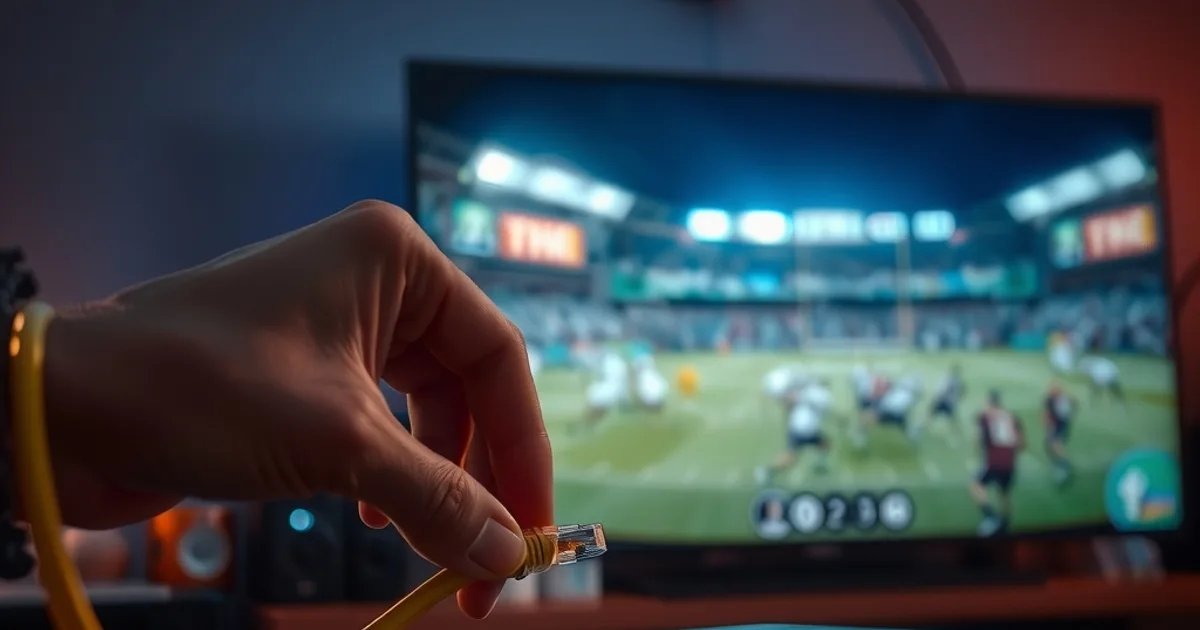
Football is stacking up fast. The CFL is already deep into its season, the Premier League kicks off this weekend, and NFL Week 1 lands in under three weeks on September 9. That means the 6-to-11-PM window is about to become the busiest stretch of the day on every network in the country, and if your IPTV stream freezes during a live match, this is exactly the wrong month to ignore it.
Most buffering guides list Ethernet as tip number eight out of fifteen, buried between 'restart your router' and 'clear the app cache.' That's backwards. If your buffering happens specifically during peak hours, on specific devices, or gets worse the farther you are from the router, WiFi instability is very likely the actual cause, not your internet plan and not your provider's servers.
This guide skips the generic checklist and goes deep on one fix: running a wired Ethernet connection to your IPTV device. Why it works, what cable to actually buy, how to run it without trashing your living room, the exact setup steps per device type, and what to do in the minority of cases where it doesn't solve the problem.
The #1 IPTV Complaint: Why Buffering Spikes During Prime Time
Ask anyone who streams IPTV what their biggest frustration is, and 'it buffers right when the game gets good' comes up more than any other complaint. It's rarely random. Buffering that clusters between 6 PM and 11 PM, or that gets worse specifically during a big match everyone in the neighborhood is also watching, points to network congestion rather than a broken app or a bad subscription.
There are two congestion points that matter here, and they stack on top of each other during football season. The first is outside your home: your ISP's local infrastructure carrying more traffic as everyone streams at once. We cover that mechanism in detail in our piece on ISP throttling and how to test for it at /blog/isp-throttling-iptv-sports-test — read that if you suspect the bottleneck is upstream of your router.
The second congestion point is inside your home, and it's the one most people never check: your own WiFi. A 2.4GHz or even 5GHz WiFi signal has to compete with neighboring networks, microwaves, baby monitors, smart-home devices, and simple distance-and-wall interference. During prime time, when your whole household is also on WiFi streaming, gaming, and video-calling, that internal contention can cause more buffering than anything happening on your ISP's network. This guide is about fixing that second point, the one you have full control over.
Not sure if your buffering is WiFi or something else? Ask us directly and we'll help you figure it out before match time.
Network Problems vs. ISP Throttling: What's Really Causing Your Buffering?
Before you run a single cable, it's worth diagnosing which category your buffering falls into, because the fix is different for each. ISP throttling tends to be time-of-day predictable and affects every device in the house roughly equally, even ones sitting right next to the router. WiFi instability tends to be device-specific and location-specific: the box in the bedroom buffers constantly, the one wired in the living room never does, or your laptop streams fine on the same network while your IPTV box stutters.
A quick way to separate the two: run a wired speed test on the device that's buffering, using the method in our Canada-specific breakdown at /blog/iptv-speed-test-canada-4k-requirements, then run the same test over WiFi on that same device at the same time. If the wired result comfortably clears what 4K or HD streaming actually needs and the WiFi result is noticeably lower or wildly inconsistent between runs, you've found your answer. If both are equally poor, throttling or an undersized plan is more likely the real culprit.
It's also common for both to be happening at once; a mediocre WiFi signal compounds an already-strained ISP connection during peak hours. That's actually good news, because it means fixing the WiFi side removes one variable and makes any remaining throttling issue much easier to isolate and address on its own.
Why Ethernet Beats WiFi (The Physics of Stable Streaming)
WiFi is a shared, wireless, half-duplex medium. Every device on the network takes turns talking over the same airwaves, and that air is crowded: your neighbor's router, your microwave, your Bluetooth speaker, and every other 2.4GHz or 5GHz device nearby are all competing for the same limited spectrum. WiFi also degrades with distance and physical obstruction. A brick wall, a mirror, or even a fish tank between your router and your IPTV box can cut signal strength enough to cause visible buffering, even when the WiFi bars on-screen look fine.
IPTV is unusually sensitive to this kind of instability compared to something like Netflix. Netflix buffers a large chunk of video ahead of time and can absorb a rough patch of WiFi without you noticing. IPTV streams are typically much closer to real time, especially for live sports, which means there's less of a buffer cushion to hide brief WiFi dropouts. A half-second of interference that Netflix shrugs off can be exactly the stutter that ruins a goal replay on an IPTV stream.
Ethernet sidesteps all of it. It's a dedicated, physical, full-duplex connection between your router and your device, with no competing traffic, no interference, and none of the distance-related signal loss that wireless suffers from. The connection your box gets over a cable is essentially the same, consistent quality whether it's 3 PM on a Tuesday or 9 PM during a Premier League match with the whole street streaming at once. That consistency, not raw speed, is what actually fixes buffering. A lot of home WiFi setups already have enough bandwidth on paper; what they don't have is the stability to deliver that bandwidth without interruption, second after second, for two straight hours.
Running an Ethernet Cable: 3 Practical Routes (Hidden, Short, or Long)
The idea of running a cable across a living room stops a lot of people before they even try. In practice there are three realistic routes, and you only need one to work.
Short and visible: if your router and IPTV box are in the same room, or one room apart, the simplest option is a flat, low-profile Ethernet cable run along a baseboard and secured with adhesive cable clips. It's not invisible, but it's unobtrusive and takes under ten minutes to install. Buy a cable a couple of meters longer than the exact distance you measured; you'll want the slack.
Hidden along the room: for a cleaner look, cable raceways (paintable plastic channels that stick to the wall) let you run the cable along a wall or ceiling line and paint them to match, so the cable effectively disappears. This is the middle-ground option most people end up choosing.
Long or through-wall: if the box and router are in different rooms or on different floors, you can fish the cable through a wall cavity, along a baseboard the entire way, or route it through a basement or attic and drop it down. This takes more effort and possibly a fish tape tool, but a single wired IPTV device is worth it if buffering has been a recurring problem. If you're planning to wire more than one room, it's worth reading our multi-room setup guide at /blog/iptv-multi-room-setup-guide before you commit to a single-cable approach, since a small unmanaged switch can let you wire several devices off one run.
Step-by-Step Setup: Connect Your IPTV Box to Ethernet
First, buy the right cable. A Cat5e cable is enough for any IPTV stream up to and including 4K; Cat6 costs slightly more and adds headroom for future home networking, but it isn't required for streaming alone. Avoid the cheapest unshielded cables sold in bulk bins with no category rating printed on the jacket; they're a common source of intermittent, hard-to-diagnose connection drops.
For an Android TV box, Fire TV Cube, or any device with a physical Ethernet port: plug one end of the cable into the device and the other into a free LAN port on your router. Most of these devices auto-detect the wired connection, but to be safe, go into Settings, then Network, and manually switch the active connection from WiFi to Ethernet. Some devices keep WiFi active in the background even with a cable plugged in, which defeats the purpose, so confirm WiFi is explicitly turned off.
For a Fire TV Stick or Chromecast, which don't have a built-in Ethernet port, you'll need a USB-to-Ethernet adapter that plugs into the device's USB or power port, with the Ethernet cable running into that adapter. These adapters are inexpensive and widely available, and setup is the same after that: confirm in the network settings that the device is using the wired connection, not WiFi.
For a Smart TV with a built-in Ethernet port, plug the cable directly into the TV and disable WiFi in the network settings menu. If your IPTV app runs through the TV's own operating system rather than an external box, this wires the whole app, not just one input.
Does It Work? How to Test & Confirm the Fix
Don't just watch a few minutes and call it fixed. Buffering caused by WiFi instability is often intermittent by nature, so a short, quiet test window can give you false confidence. Instead, test during the exact conditions that caused problems before: prime time, with the rest of the household online, ideally during a live match rather than on-demand content.
Run a proper speed test on the wired connection first, using the same benchmarks from /blog/iptv-speed-test-canada-4k-requirements, and confirm the numbers are stable across three or four consecutive tests rather than just one. Consistency across repeated tests matters more than a single high number, since a single good result can mask an unstable connection that dips intermittently.
Then watch a live stream for at least 30 to 45 minutes during peak hours. If the buffering that used to appear every 10 to 15 minutes is gone, or reduced to a single brief stutter instead of a full freeze-and-reload, the wired connection has done its job. If you have more than one IPTV device in the house, it's worth wiring the one that buffered the most first and using it as your control before deciding whether to wire the rest.
Buffering Still Happening? The 10% Troubleshooting Path
If buffering continues after switching to a wired connection, the good news is you've just eliminated the most common cause, which narrows down what's left significantly. Start with the cable itself: a cheap or damaged Ethernet cable can bottleneck a connection almost as badly as WiFi. Swap it for a known-good cable before troubleshooting anything else.
Next, check your router itself. An older router, or one that's been running for months without a restart, can develop its own instability regardless of wired or wireless connections. A full power-cycle, unplugged for 30 seconds, resolves a surprising number of stubborn cases. If your router is several years old or was provided by your ISP as a basic bundled unit, it may simply be underpowered for a household running multiple streaming devices at once.
If the wired test from the previous section still shows inconsistent speeds even directly connected, the problem is very likely upstream of your home network entirely, meaning your ISP connection itself. That's the scenario our throttling guide at /blog/isp-throttling-iptv-sports-test is built for: it walks through how to test specifically for ISP-side throttling versus a genuine bandwidth shortfall, and what to do about each. At that point, it's also worth checking whether your current plan's advertised speed actually matches what you're getting during peak hours, since an undersized plan will bottleneck even a perfect wired setup.
A stable wired connection is only half the equation, the right plan for your household matters too. See what fits before kickoff.
Can't Use Ethernet? Your Backup Options (USB Adapters, Powerline, Mesh)
Renters, apartment layouts, and rooms with no practical cable route are all legitimate reasons Ethernet isn't always doable. The good news is a direct cable isn't the only way to get a wired-equivalent connection.
Powerline adapters use your home's existing electrical wiring to carry a network signal between two rooms, no cable-fishing required. Plug one adapter into an outlet near your router and connect it with a short cable, then plug the second adapter into an outlet near your IPTV box and run a short cable from there to the device. Performance varies by home and electrical panel setup, but it's typically far more stable than WiFi and takes minutes to install.
A mesh WiFi system with wired backhaul is the better option if you're covering multiple rooms rather than just one device. Instead of relying purely on wireless mesh nodes talking to each other over the air, you run a single Ethernet cable from your main router to one mesh node, which then provides a much stronger, closer WiFi signal to the device that was struggling. This combines nicely with the multi-room approach in /blog/iptv-multi-room-setup-guide if you're setting up IPTV in more than one room of the house.
If none of these are workable, the fallback is simply positioning: move the IPTV box as close to the router as possible, ideally with a direct line of sight and no walls between them, and disable the 2.4GHz band on your router if your device supports 5GHz, since 2.4GHz is far more crowded with interference from other household devices.
Frequently asked questions
Will Ethernet actually fix my IPTV buffering, or could it be something else?
Ethernet fixes buffering that's caused by WiFi instability, which is the most common cause, especially for buffering that's device-specific or worse during peak hours. If your wired speed test still shows problems after switching, the cause is more likely your router, your ISP connection, or an undersized internet plan, all covered in the troubleshooting section above.
Does the length of the Ethernet cable affect streaming quality?
Not meaningfully for home use. Standard Ethernet cable maintains full performance up to 100 meters, far longer than any realistic run inside a house. Buy based on the route you need to run, not out of concern about signal loss over distance.
Do I need Cat6 cable, or is Cat5e enough for 4K IPTV?
Cat5e is enough for any IPTV stream, including 4K. Cat6 offers extra headroom for other home networking uses down the line, but it isn't necessary purely for streaming. Prioritize a cable with a proper category rating on the jacket over paying more for Cat6 specifically.
Can I use a USB Ethernet adapter with a Fire TV Stick?
Yes. A Fire TV Stick doesn't have a built-in Ethernet port, so a USB-to-Ethernet adapter is the standard way to wire it. Plug the adapter into the Stick's power or USB connection, run the Ethernet cable from the adapter to your router, and confirm in the network settings that it's using the wired connection rather than WiFi.
Why does my buffering only happen during live sports, not with regular shows?
Live sports streams run much closer to real time than on-demand content, which is usually buffered ahead. That leaves far less cushion to absorb a brief WiFi interruption, and live events also tend to fall exactly in the prime-time window when both your home WiFi and your ISP's network are under the most load.
What if I've wired the connection and it's still buffering during big matches specifically?
That pattern, fine most of the time but buffering specifically during high-traffic events, points toward ISP-side congestion or throttling rather than your home network. Test for it using the method in our ISP throttling guide, and check whether your current plan actually holds its advertised speed during those peak windows.