IPTV Multi-Room Setup: Watch on 4 TVs at Once (2026)
August 4, 2026 · 9 min read
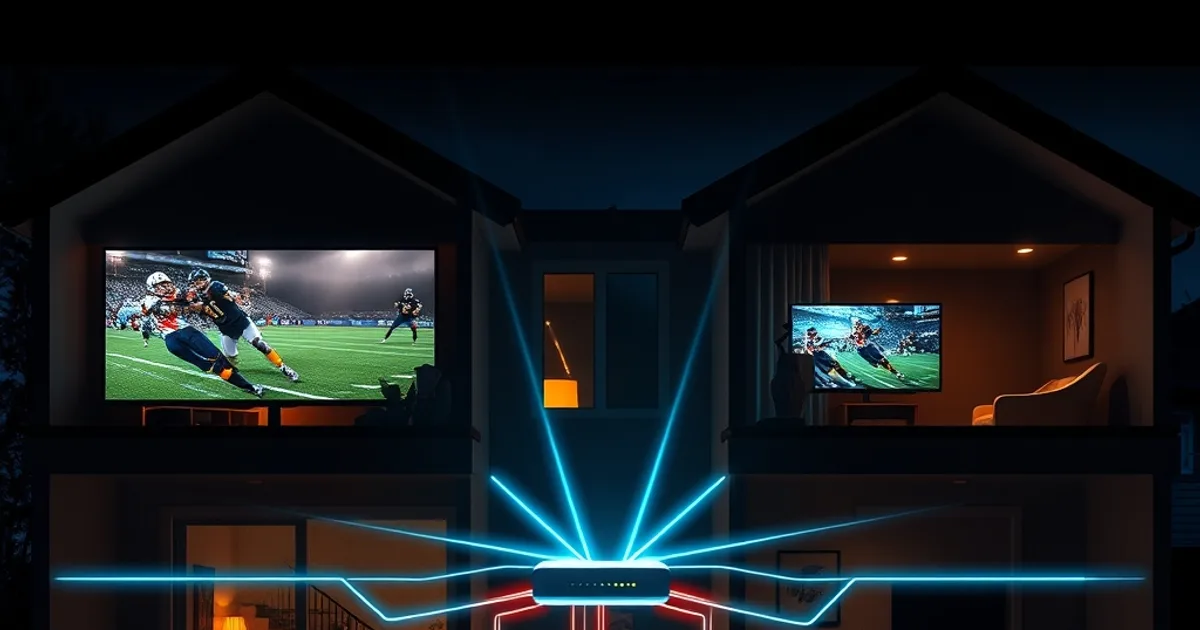
A single IPTV subscription on one TV is easy. The moment a second, third, or fourth screen joins in — a teenager watching a match in their room while the kitchen has the news on and the basement is streaming a movie — most households hit friction they weren't expecting: a stream that won't start, a picture that stutters only in one room, or an app that logs someone out the moment another device connects.
None of that is random. It comes down to three things working together: how many simultaneous connections your plan actually allows, how your home network distributes bandwidth room by room, and which device sits in which room. Get those three right and four TVs run independently without anyone noticing anyone else is watching.
Summer family gatherings and the lead-up to fall sports season (CFL, hockey playoffs prep) drive multi-room interest every year around this time — search activity for this exact setup runs from August through November, right when Canadian households start planning how the living room, the kitchen, and the kids' rooms will all have a screen running during the same weekend. This guide walks through the setup properly, not the generic "just install the app on every TV" advice that ignores what actually breaks.
Do You Have a Multi-Room IPTV Plan? Connection Limits Explained
Every IPTV subscription has a simultaneous connection limit — the number of devices allowed to stream at the exact same moment under one account. This is separate from the number of devices the app is installed on. You can install the app on ten devices; what matters is how many can play video at once before the server cuts one off or blocks a new login.
Providers structure this in tiers, generally described as a Basic single-connection plan versus a Family or multi-connection plan that unlocks two, three, or four simultaneous streams. If your household routinely has more than one TV running at the same time — which is the entire point of a multi-room setup — a single-connection plan will actively fight you: the second TV to try streaming gets kicked, or the first one freezes. Check what your plan actually includes before troubleshooting anything else, since a "broken" third TV is very often just a connection-count ceiling, not a technical fault. Our full breakdown of setting up the first box is at /how-to-set-up-iptv-box if you're starting from zero, and current plan tiers are listed on /tarifs.
One nuance Canadian households miss: connection limits are usually per-account, not per-device-type. A phone checking the score in the car, a tablet in a bedroom, and the living room TV can all count against the same limit even though only one of them is the "main" screen. If you want four TVs running reliably at once, plan for a tier that covers four — not three plus a buffer for phones and tablets that quietly eat a slot too.
Not sure if your current plan covers four screens at once?
Bandwidth Math: How Much Internet Speed Do You Need Per Room?
IPTV bandwidth needs scale with resolution, not with the number of TVs alone — but both multiply together. A standard HD stream typically needs somewhere in the 5-8 Mbps range to stay stable, and a 4K stream needs meaningfully more, often in the 25 Mbps range depending on the source encoding. Four TVs all pulling HD at once is a very different load than four TVs all pulling 4K at once.
The math Canadian households skip: add up what every room needs at its target quality, then add 30-40% headroom on top. That headroom isn't optional — it's what absorbs your provider's real-world speed being lower than the advertised number, other household devices (laptops, gaming consoles, video calls) sharing the same connection, and normal internet variability during peak evening hours. A plan advertised at 100 Mbps that measures 70 Mbps in practice, split across four 4K streams needing 25 Mbps each, is already short before anyone in the house opens a laptop.
This is exactly where Canadian ISP throttling matters more than most guides admit. Some ISPs apply traffic shaping specifically to sustained video streams during high-usage windows, even when your plan's raw speed number looks sufficient on paper. If one room buffers only during evening prime time while the others are fine, throttling — not your router — is the first thing worth ruling out. We cover exactly how to test for it at /isp-throttling-iptv-sports-test, and it's worth running that test before you spend money on new hardware.
WiFi vs Wired: Where to Plug in Each Device for Reliable 4K
WiFi is convenient and fine for a single stream in a room close to the router. It becomes the weak link the moment you're running four rooms at once, because WiFi is a shared medium — every device on the same band is competing for the same airtime, and walls, distance, and interference from neighbours' networks all eat into what's actually available, regardless of what your plan advertises.
The practical rule for a Canadian home: any TV running 4K, or any TV in a room more than one wall away from the router, should be wired with Ethernet if at all possible. A wired connection removes the guesswork entirely — it's not competing with the microwave, the neighbour's router, or the other three TVs for the same wireless channel. If running Ethernet to every room isn't realistic, a set of powerline adapters (which carry network signal over your home's existing electrical wiring) or a mesh WiFi system designed for multiple simultaneous heavy streams is the next best option — a single consumer router built for one household of light browsing was never designed for four parallel video streams.
If wired isn't possible in a given room, put that device on the 5GHz band rather than 2.4GHz whenever the device and router both support it. 5GHz carries more data over shorter range with less interference, which is exactly the tradeoff you want for a stationary TV a few rooms from the router — 2.4GHz should be reserved for smart-home devices and things far from the router that need range more than speed.
Device Pairing for Every Room (Fire Stick + Android Box + Smart TV + Tablet)
Not every room needs the same device, and matching the device to the room is part of what makes a four-TV setup feel effortless instead of finicky. A Fire Stick in the living room is a solid choice for the main screen — strong app support, familiar remote, and it handles a wired Ethernet adapter accessory if that room is close enough to run a cable.
An Android TV box in a bedroom or basement gives more flexibility for a secondary screen — generally more storage for app data and smoother multitasking between apps than a stick-form device, which matters if that room's TV also handles other streaming apps and gaming.
A smart TV's built-in apps work fine for a kitchen or guest room where the priority is simplicity over performance — one remote, no extra box plugged in, good enough for a screen that isn't the household's primary viewing spot. And a tablet or phone covers the case that isn't really a "room" at all: someone checking a match from the backyard or catching up in bed without tying up a TV.
The device comparison and setup steps for each of these are covered in depth at /best-iptv-box-canada — worth checking before buying a fourth device, since the right pick genuinely differs by room, not just by budget.
Router Placement: The Biggest Mistake Multi-Room Setups Make
The single most common cause of a multi-room IPTV setup that only half-works: the router sits wherever the internet cable happens to enter the house, usually a corner, a closet, or a basement utility room — not a central point that can reasonably reach every TV.
Router placement matters more with four simultaneous streams than with one, because a weak signal doesn't just slow a stream down evenly — it causes the stream to constantly renegotiate quality, which shows up as the exact stutter-and-recover pattern people usually blame on their IPTV provider. Centralizing the router, or adding a second access point / mesh node to cover the far side of the house, fixes more "broken" rooms than any app reinstall does.
If moving the router isn't practical, prioritize which rooms get the cleanest signal path based on what they're actually used for. The room that streams 4K sports on weekends deserves a wired connection or the strongest WiFi position far more than a guest room that streams occasionally.
Why One Room Buffers While Another Doesn't (And How to Fix It)
When three TVs run perfectly and a fourth consistently buffers, the cause is almost always local to that one room rather than the provider or the overall plan — which is good news, because it's fixable without touching anything else in the house.
Work through it in order: first, confirm that room's device is on WiFi while the others are wired, or on the 2.4GHz band while others are on 5GHz — distance and band alone can explain the entire gap. Second, check what else shares that specific segment of the network; a gaming console downloading an update or a laptop backing up to the cloud in the same room can quietly consume the bandwidth that room's stream needs. Third, rule out the device itself — an older streaming stick or a smart TV app that hasn't been updated in a while can struggle with 4K decoding even on a perfect connection, in which case the fix is a newer device in that room rather than anything network-related.
If the buffering room only acts up at a specific time of day — evenings, or during a big match everyone in the neighbourhood is also streaming — that's a strong signal it's ISP-side congestion or throttling rather than your home setup at all. That's the scenario /isp-throttling-iptv-sports-test is built to diagnose.
Ready to set up every TV in the house on one reliable plan?
Picking Your IPTV Player App When Devices Differ
A four-room setup rarely runs identical hardware, which means it rarely runs one single app across every screen — and that's fine. The right approach is picking the best-supported player for each device type rather than forcing one app to work everywhere it wasn't built for.
What matters across every room is consistency in what the app needs from you: the same connection details, entered correctly on each device, and each device counted against your plan's connection limit as covered earlier. A player that's excellent on Android TV boxes isn't always the best choice on a Fire Stick, and a smart TV's native app store options are more limited than either — matching the player to the platform avoids the playback quirks that get mistaken for a subscription problem.
This is also where the account-per-connection limit comes back into play: if two rooms are logged in with the same device credentials at once because a duplicate profile was set up, one will simply be dropped without warning. Each room's device should have its own clean setup, following the same install steps whether it's the first TV or the fourth.
Frequently asked questions
Can I really watch different shows on 4 TVs at the same time with IPTV?
Yes, as long as your plan's simultaneous connection limit covers four streams and your home network has enough bandwidth and a stable enough signal in every room. The limiting factor is almost never the content — it's the connection count and the network path to each screen.
Does adding more TVs slow down the ones that already worked fine?
It can, if the added load pushes your total bandwidth need past what your connection reliably delivers, or if the new device is on a weak WiFi signal that affects the whole band. Wiring new devices with Ethernet where possible keeps them from competing with the rooms that were already working.
Do all four TVs need the same type of device (Fire Stick, Android box, etc.)?
No — mixing device types per room is normal and often the better choice. A stronger box suits a heavy-use room, while a smart TV's built-in app is enough for a secondary screen. What matters is that each device is set up cleanly and counted against your connection limit.
Why does only the bedroom TV buffer when the living room is fine?
Usually distance from the router, a weaker WiFi band, or another device sharing that room's network segment. Compare wired vs WiFi and 5GHz vs 2.4GHz between the working and non-working rooms first — that mismatch explains most single-room buffering.
Is a mesh WiFi system worth it for a multi-room IPTV setup?
If running Ethernet to every TV isn't realistic and you have more than two or three rooms streaming at once, a mesh system built for multiple simultaneous streams is generally a better investment than a single stronger router, since it fixes the coverage gap that causes far-room buffering.
How do I know if my plan supports enough connections for my household?
Count every screen that might stream at the same moment — TVs, tablets, and phones included — and match that against your plan's simultaneous connection tier. Current tiers are listed at /tarifs, and it's worth checking before assuming a buffering fourth TV is a technical fault.