Record Your Sports Games: IPTV DVR Setup for 2026
August 10, 2026 · 9 min read
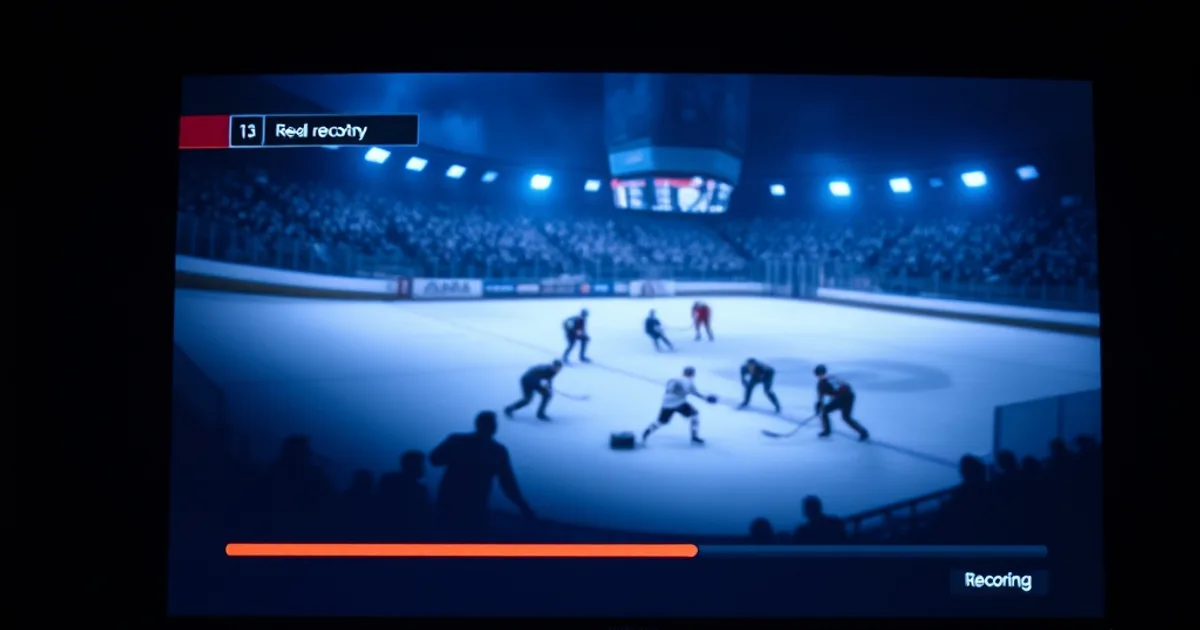
Work shift runs late, the kids need picking up, or you're just not home when puck drop happens — and the game you actually wanted to see is gone. That's the problem IPTV recording solves, and it's one of the most under-explained features in the entire IPTV ecosystem. Most setup guides mention "you can record too!" in a single sentence and move on. This one doesn't.
August marks the start of peak research season for Canadian sports fans getting their streaming setup ready before the season crunch: NHL training camps open in September, CFL playoff positioning heats up through the fall, and NFL Sunday scheduling conflicts start piling up almost immediately. Searches for "IPTV recording" and "DVR setup" reliably spike six to eight weeks before these seasons kick off, and right now there isn't a single Canadian guide that actually walks through the mechanics end to end — which apps support it, how storage and cloud options differ, and why a recording that looked scheduled correctly can still come back empty.
This guide covers exactly that: which apps actually record (and which only pretend to), the two real recording methods — local USB storage and cloud/catch-up — how to schedule from the EPG so you never have to remember manually, the specific reasons recordings fail during high-traffic broadcast windows, and how much storage a season of hockey actually eats up. If you haven't set up your box yet, start with how to set up IPTV box before layering recording on top.
Can You Actually Record IPTV? (Yes, But Your App Matters)
Yes — IPTV recording is real, but it isn't a universal feature the way it is on a cable box. IPTV recording works by having the app itself capture the incoming stream and write it to storage in real time, rather than pulling from a network-side DVR the way a cable or satellite provider does. That distinction matters: the recording quality, reliability, and storage location depend entirely on which player app you're using, not on your IPTV subscription itself.
Because the app does the recording locally (or via its own cloud integration), two identical subscriptions on two different apps can have completely different recording experiences. One app might record flawlessly with a full EPG scheduler; another might not support recording at all. This is the single most common source of frustration people run into — they assume recording is a subscription feature when it's actually an app feature.
Before doing anything else, confirm your app supports recording and that you're on whichever tier unlocks it (recording is frequently a premium/paid-app feature, not a free-tier one). If you're still choosing hardware, the best IPTV box for Canada guide covers which boxes have enough onboard storage and processing headroom to handle simultaneous recording and playback without stuttering.
Not sure which app or setup fits your recording goals?
Which IPTV Apps Support Recording (TiviMate vs Smarters vs Perfect Player)
TiviMate is the strongest option for serious recording, but only on its Premium tier — the free version doesn't include DVR functionality at all. Premium adds a proper timer-based recorder tied directly to the EPG, local storage writes to USB or internal storage, and a recordings library that behaves like a real DVR interface rather than a bolt-on feature.
IPTV Smarters Pro supports catch-up and, on some builds, local recording, but its scheduler is less mature than TiviMate's — it's better suited to manually starting a recording you know you'll miss than to setting up a season's worth of automated timers. It's a reasonable fallback if you're already invested in the Smarters ecosystem across multiple devices, which matters if you're running an iptv multi-room setup guide-style household with shared subscriptions.
Perfect Player, historically a favorite for its lightweight EPG handling, has weaker native recording support and generally requires more manual configuration or third-party workarounds to capture streams reliably. For anyone whose primary goal is DVR functionality rather than just a lean EPG browser, it's the weakest of the three.
The practical takeaway: if recording sports games is your priority, TiviMate Premium is worth the upgrade cost specifically for the DVR feature — everything in the rest of this guide assumes you're using it, though the underlying logic (EPG timers, storage location, bandwidth headroom) applies across apps.
TiviMate Premium Recording Setup: USB Drive Method Step-by-Step
The USB method is the most reliable way to record because it removes network variability from the equation — you're writing directly to physical storage attached to your box rather than depending on an upload connection. Here's the setup sequence: plug a USB drive (USB 3.0 recommended for write speed) into your streaming device, then in TiviMate go to Settings > Recordings and select that drive as the recording destination.
TiviMate will prompt to format or designate a folder on the drive — do this before your first scheduled recording, not after, since a misconfigured destination is one of the most common reasons a "successful" recording ends up as a zero-byte file. Once the destination is confirmed, recordings triggered from the EPG or channel view will write there automatically.
Device choice matters here more than people expect. A weak streaming box with limited USB throughput or a slow processor can stutter or drop frames while simultaneously decoding a live stream and writing it to disk — this is exactly the kind of hardware bottleneck covered in the best IPTV box for Canada comparison, and it's worth checking your device against those specs before committing to a recording-heavy setup.
One habit worth building immediately: after your first two or three recordings, actually play them back rather than assuming they worked. A quick playback check catches format or permission issues while they're still easy to fix, instead of discovering a blank file after the game you cared about is already over.
Cloud Recording & Catch-Up TV: Setup Without Extra Hardware
If you don't want to manage a USB drive, catch-up TV is the alternative — and it's a fundamentally different mechanism worth understanding. Rather than your device recording the stream locally, catch-up TV relies on your IPTV provider retaining a rolling window of past broadcasts on their servers, which you then scrub back into from the EPG like an on-demand replay.
The upside is zero local storage management and no risk of a full drive killing a recording mid-game. The downside is that catch-up windows are provider-defined and typically short (commonly in the range of a day or two, though this varies by provider and channel), and if the provider doesn't offer catch-up on a specific sports channel, there's nothing to scrub back into — it isn't something you can force from the app side.
In practice, the two methods aren't mutually exclusive. Many households use catch-up for "I missed the first period, let me jump back in" scenarios and reserve local USB recording for games they specifically want to archive and keep — a playoff run, a rivalry game, anything with a shelf life longer than a couple of days.
Scheduling Automatic Recordings from Your EPG
The EPG (electronic program guide) is where recording actually becomes useful instead of just theoretically possible — manually starting a recording only works if you remember to do it before the game starts. In TiviMate, long-pressing a program listing in the EPG brings up a record option; selecting it sets a timer that fires automatically at the scheduled start time, no matter what you're doing on the device at that moment.
For recurring games — a team's full regular-season slate, for instance — some apps support series-style recording rules so you're not manually setting a new timer every single week. Where that's not available, the practical workaround is scheduling a batch of individual timers at the start of each week once the broadcast schedule is confirmed.
EPG accuracy is the make-or-break variable here. If your provider's guide data is off by even a few minutes, or a broadcast runs long (overtime, a delayed start), a timer set to the officially listed window can clip the end of the game. Padding a recording by 15-30 minutes past the listed end time is a cheap insurance policy against exactly this.
Why Recordings Fail During Peak Hours (And How to Fix It)
This is the gap almost no other guide actually addresses, and it's the single most common complaint from anyone who's tried IPTV recording during a big game: the recording either doesn't start, cuts out partway through, or produces a corrupted file — and it happens disproportionately during marquee matchups when server and network load is highest.
The root causes generally fall into four buckets. First, provider-side server congestion — peak-hour demand on the source stream itself can cause dropped frames or reconnects that corrupt an in-progress recording. Second, insufficient local bandwidth if the recording device is also streaming to other TVs in the house, since recording adds its own bandwidth draw on top of whatever else is being watched — see the iptv speed test and 4K requirements guide to check your actual available headroom, not just your plan's advertised speed. Third, storage write failures — a nearly-full drive, or a USB port that drops connection under sustained write load, particularly on lower-end boxes. Fourth, app-level timer conflicts, where two overlapping scheduled recordings on the same device compete for resources and one (or both) fails silently.
The fix for most of this is proactive rather than reactive: keep at least 15-20% of your recording drive free at all times, avoid scheduling overlapping recordings on the same device, and if you're recording during a high-demand event, close other streams on that connection rather than assuming your bandwidth can absorb everything at once. If corrupted recordings keep happening specifically during marquee games, that's a strong signal the bottleneck is upstream server congestion rather than anything on your end — and no local fix solves that.
Storage Math: How Many Games Can You Actually Keep?
Storage need scales directly with resolution and bitrate, not just runtime. As a rough planning baseline, standard-definition recording runs in the neighborhood of 1-1.5 GB per hour, HD in the range of 3-4 GB per hour, and 4K considerably higher — often 8-10+ GB per hour depending on the source bitrate. A three-hour hockey broadcast in HD, then, lands somewhere around 9-12 GB, so a 1TB drive gives you rough breathing room for dozens of full games before you need to start clearing old ones out.
The practical move is to treat your recording library the way you'd treat a DVR on cable: keep what you're actually going to rewatch, and clear out games once you've watched them or the season's moved past being relevant to you. Letting recordings pile up unmanaged is the fastest way to end up with a full drive that silently fails a recording at the worst possible moment.
Bandwidth is the other half of the equation, and it's just as easy to underestimate. Recording a stream while also watching a different live channel effectively doubles your active bandwidth draw, and if you're running a household with multiple screens active per the iptv multi-room setup guide, that draw multiplies further. Before committing to a recording-heavy setup, it's worth running an actual speed test rather than trusting your ISP's advertised number — the iptv speed test and 4K requirements guide walks through what to check and what headroom you actually need for reliable simultaneous streaming and recording.
Ready for a setup built to handle live streaming and recording without dropouts?
Bonus: Multi-Screen Recording (Watch One Game, Record Another)
Sunday afternoons during NFL season or a CFL doubleheader create a real problem: two games you want, one screen. Multi-screen recording — watching one broadcast live while a second records in the background — solves it, but it depends on your device and connection having enough simultaneous decode and bandwidth capacity to handle both streams at once without either one degrading.
This is where hardware choice comes back around. A box that struggles to record one stream cleanly is going to struggle considerably more trying to decode a live stream and write a second one to storage at the same time — check your device against the specs in the best IPTV box for Canada guide before planning around this. If you're setting up multiple rooms or devices to split viewing and recording duties, the iptv multi-room setup guide covers how to structure that without individual devices competing for the same bandwidth pool.
For anyone leaning toward 4K recording specifically — a real option for marquee 4K broadcasts — pair this with the 4K IPTV streaming setup guide for Canada first, since 4K recording is the scenario most likely to expose a weak connection or underpowered box. And if your specific interest is CFL or NFL coverage timing and scheduling around IPTV, the CFL and NFL streaming guide for Canada is a useful companion for planning what to prioritize recording versus watching live.
Frequently asked questions
Do I need TiviMate Premium to record IPTV, or does the free version work?
The free version of TiviMate does not include DVR/recording functionality — it's a Premium-tier feature. If recording is your priority, budget for the Premium upgrade; it's the most mature EPG-based recording implementation across the major IPTV apps.
Can I record IPTV without a USB drive?
Yes, if your provider offers catch-up TV on the channel you want — this replays recent broadcasts from the provider's servers rather than recording locally. It's convenient but time-limited (typically a day or two) and unavailable on channels without catch-up support, unlike local USB recording which you fully control.
Why did my scheduled recording come back as a blank or corrupted file?
The most common causes are a misconfigured or full recording drive, provider-side server congestion during peak viewing hours, insufficient bandwidth if another stream was active at the same time, or overlapping recording timers competing for resources on the same device. Check drive space and close other active streams before a big game to rule out the fixable causes.
How much storage do I need to record a full NHL or CFL season?
It depends on resolution: HD recording runs roughly 3-4 GB per hour, so a three-hour game lands around 9-12 GB. A 1TB drive comfortably holds dozens of full games in HD before you need to clear older recordings, but 4K recording will fill that same drive considerably faster.
Can I watch one live game while recording another at the same time?
Yes, but it requires enough device processing power and connection bandwidth to handle both streams simultaneously. Weaker boxes or connections near their bandwidth limit are the most common reason multi-screen recording stutters or fails — check your device specs and run an actual speed test before relying on it for a big doubleheader.
Does padding my recording timer past the listed end time actually help?
Yes — EPG listings are frequently a few minutes off, and any broadcast that runs long (overtime, a delayed start) can get clipped if your timer stops exactly at the officially listed end time. Adding 15-30 minutes of buffer after the scheduled end is a simple way to avoid losing the final minutes of a close game.